

SUBSCRIBE
Tech Journal Now
  • Home
  • News
  • AI
  • Reviews
  • Guides
  • Best Buy
  • Software
  • Games
  • More Articles
Reading: How to play on the Schedule 1 beta branch for early access to new updates
Share
Tech Journal NowTech Journal Now
Font ResizerAa
  • News
  • Reviews
  • Guides
  • AI
  • Best Buy
  • Games
  • Software
Search
  • Home
  • News
  • AI
  • Reviews
  • Guides
  • Best Buy
  • Software
  • Games
  • More Articles
Have an existing account? Sign In
Follow US
© Foxiz News Network. Ruby Design Company. All Rights Reserved.
Tech Journal Now > Games > How to play on the Schedule 1 beta branch for early access to new updates
Games

How to play on the Schedule 1 beta branch for early access to new updates

News Room
Last updated: March 16, 2026 8:06 pm
News Room
Share
4 Min Read
SHARE

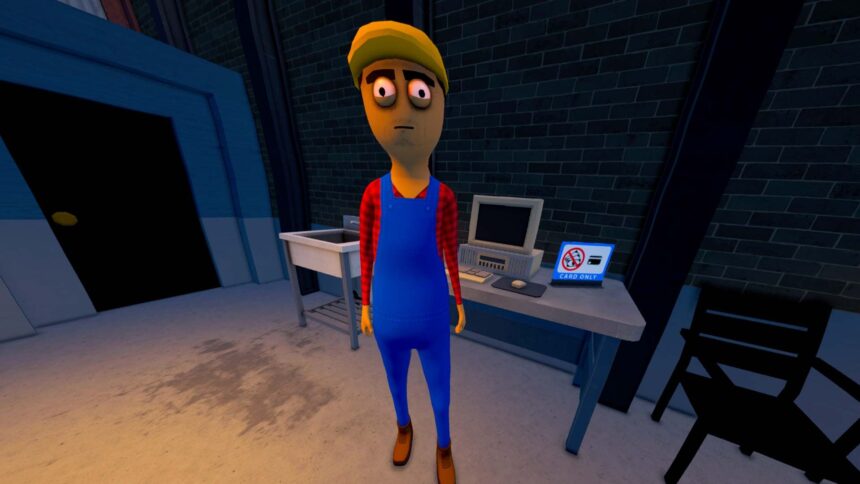
Sometimes I can’t bear the wait, and I’m ready to try out any new gadgets or gizmos as early as possible through the Schedule 1 beta branch. Fortunately for me (and the rest of you drug kingpin hopefuls), TVGS seems keen to share new Schedule 1 updates days before they go live for everyone through test builds.

Test builds don’t always make for the most stable Schedule 1 experience, but I’ve always had a good time trying out early builds to see what I can expect in the next big update. As long as you back up your save file, then there’s no real harm in swapping over.

Here’s how to play pre-release updates on the Schedule 1 beta branch, along with a quick reminder on how to back up your saves—you can never be too cautious.

Article continues below


You may like

How to play on the Schedule 1 beta branch

(Image credit: TVGS)

You can access the Schedule 1 beta branch by opening your Steam library, navigating to the Schedule 1 properties menu, and selecting the appropriate beta from the dropdown menu.

Here’s the step-by-step to access the Schedule 1 beta branch:

  1. Backup your save file first
  2. Open your Steam library and locate Schedule 1 in the list
  3. Right-click Schedule 1 and select Properties
  4. Select the fourth option, Game Versions & Betas
  5. Select beta from the build list (should have a recent update date)
  6. Allow the game to update to the beta build before launching

If you intend to play with a friend, make sure they’ve followed the same steps so you’re playing on the same Schedule 1 build. Different builds don’t play nice together.

Revert Schedule 1 beta updates or change to alternate builds

TVGS typically pushes a new Schedule 1 update into the beta branch a few days before they go live in the main build. When the beta branch is moved to Schedule 1’s main, stable build, simply follow the above steps again and select Default Public Version instead of beta.

Keep up to date with the most important stories and the best deals, as picked by the PC Gamer team.

Players who experience excessive crashing or other performance hiccups may prefer swapping to Schedule 1’s alternate-beta branch. There’s also an alternate build for the main public version, simply titled ‘alternate‘. Either way, you should have a similar experience with some performance tweaks, so pick what runs best on your hardware.

How to back up your Schedule 1 save file
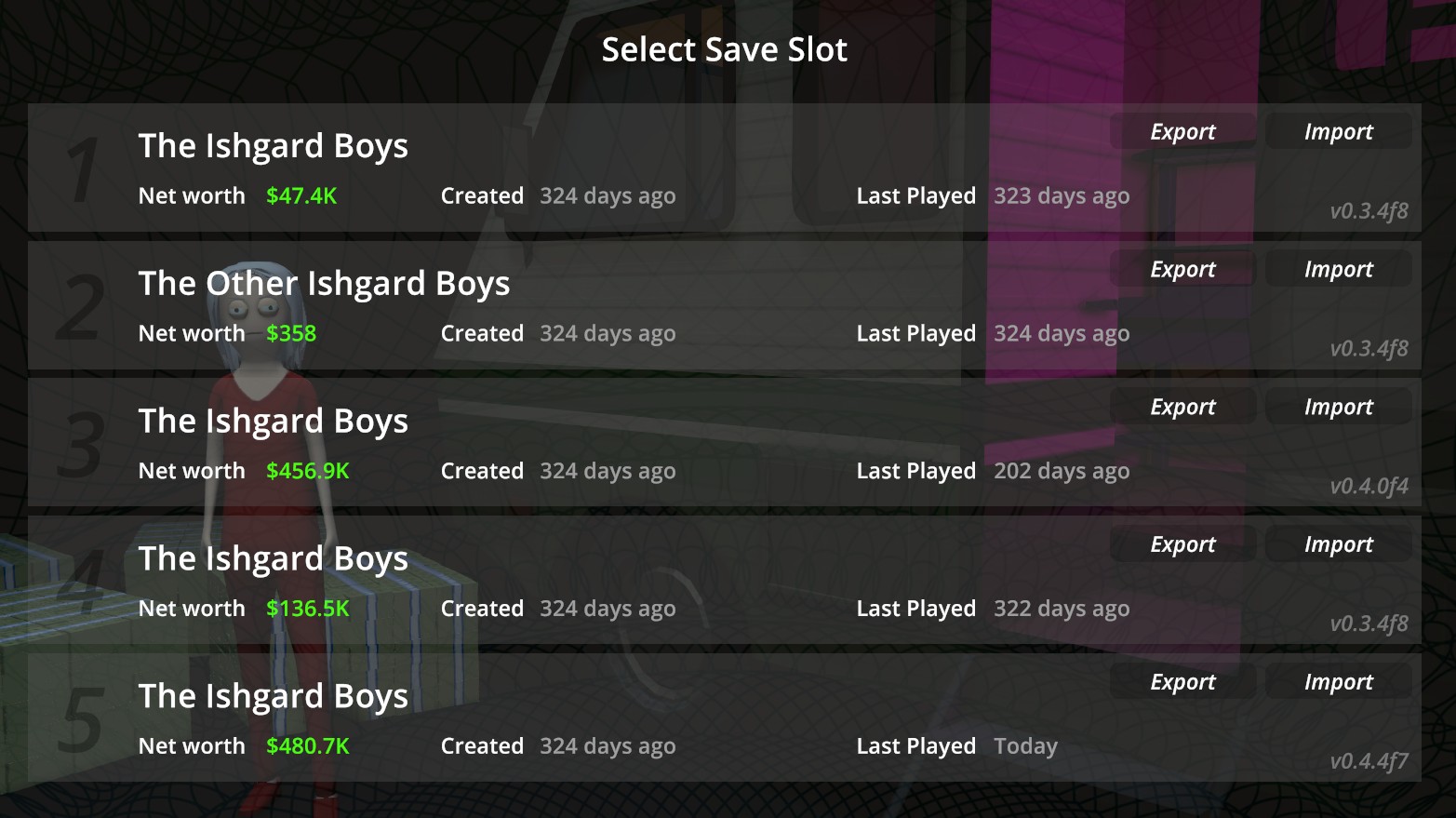
Schedule 1 save menu showing various save files for exporting or importing

Ignore my Final Fantasy 14 references; the Export/Import options are the important bits. (Image credit: TVGS)

Before you go jumping between Schedule 1 beta branches, back up your save file either through Steam or Schedule 1’s own save file export utility. Oh, how I love a game that doesn’t force me to go digging around for this stuff in my folders.

  1. Launch Schedule 1
  2. From the main menu, select Continue
  3. Click Export in the far-right corner of your save file
  4. Save the zip file somewhere safe when prompted

If something does wind up breaking, all you need to do is visit this same menu again and select Import instead. Find your zip file, double click to select it, and Schedule 1 should load up your old file like nothing ever happened.

Read the full article here

You Might Also Like

I’m tired of running the same Fortnite loadout—both SMGs and snipers need a major buff

‘They can never kill emulation’: Players vexed as Nintendo continues its siege on Switch emulation, handing DMCAs to various emulators on GitHub

‘I feel like no one will ever find it’: Stardew Valley creator says there’s one big secret still lurking in the game, and no, you can’t datamine it

Fallout’s origin can be traced back to a pizza party Tim Cain threw

Cities: Skylines 2’s new developer celebrates the occasion with a debut patch all about death, making citizens pop their clogs around the clock and removing immortality in easy mode: ‘Previously, about 80% of them never died of old age’

Share This Article
Facebook Twitter Email Print
Leave a comment Leave a comment

Leave a Reply Cancel reply

Your email address will not be published. Required fields are marked *

- Advertisement -
Ad image

Trending Stories

News

Seattle puts Microsoft Copilot expansion on hold as new mayor takes stock of AI

March 16, 2026
Games

Overwatch director says addressing the 5v5 versus 6v6 debates late ‘cost us trust’: ‘We should have listened sooner’

March 16, 2026
Software

Keeping up with the latest fixes – Computerworld

March 16, 2026
Games

Resident Evil Requiem actor had to spend ‘2 to 3 minutes’ audibly dying during her audition, while the casting director threw out surprise instructions: ‘Now a zombie has bitten your left leg’

March 16, 2026
Software

A weekend with MacBook Neo – Computerworld

March 16, 2026
News

FAQ: What the millionaires tax means for Seattle startup founders, investors, and tech workers

March 16, 2026

Always Stay Up to Date

Subscribe to our newsletter to get our newest articles instantly!

Follow US on Social Media

Facebook Youtube Steam Twitch Unity

2024 © Prices.com LLC. All Rights Reserved.

Tech Journal Now

Quick Links

  • Privacy Policy
  • Terms of use
  • For Advertisers
  • Contact
Welcome Back!

Sign in to your account

Username or Email Address
Password

Lost your password?