

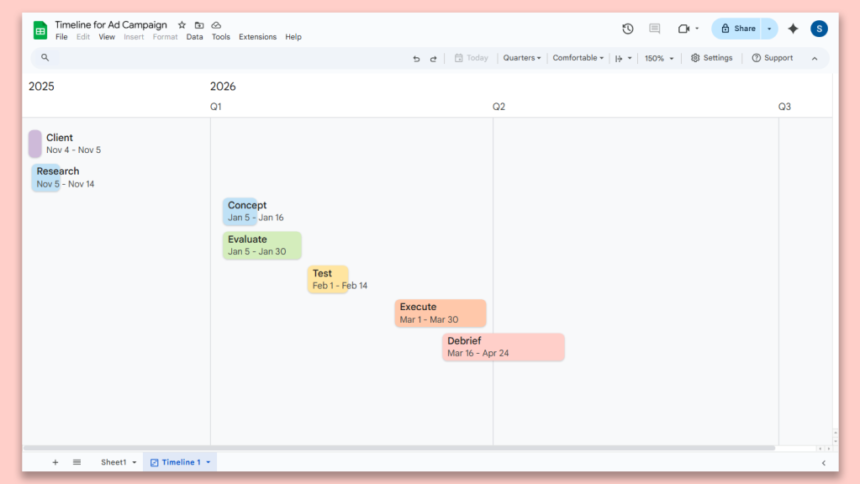
You can also edit various aspects of the overall timeline view, such as which tasks are included and whether the cards display details beyond the task name and dates. These and other aspects are controlled through the Settings sidebar. To open it, click the Settings button toward the right of the toolbar over the timeline.
The Settings sidebar lets you control the sources for your timeline data and change other aspects of its appearance.
Howard Wen / Foundry
The first four fields in the sidebar — “Select data range,” “Start date,” “End date or duration,” and “Card title” — control where the basic info that appears on the timeline cards is sourced from. Click inside any of these fields to change it.
Select data range: Click in this field and you can select a different range of cells for the timeline to pull from. For example, to show a subset of the project tasks in the timeline (say, the final three tasks), select only the rows for the tasks you want to include. Or, if you add more columns to a spreadsheet, you might need to adjust this field to include the expanded data set.
Read the full article here