


If you want to apply any of the checked suggestions to your writing, click the Apply selected suggestions button.
Copilot can offer suggestions for improving a document in Word.
Howard Wen / Foundry
Have Copilot rewrite text
You can have Copilot rewrite passages of text in a Word document, an email, or a OneNote page. This can be useful if you feel that the text could use a little more detail, or if a paragraph sounds too wordy. Microsoft says Copilot’s rewriting ability works best at under 3,000 words.
In all three web apps, you can use the Copilot sidebar for rewriting. In Word, you can also use the “Rewrite with Copilot” panel, and OneNote has a similar rewriting tool.
Using the “Rewrite with Copilot” panel in Word
Highlight the passage of text that you want Copilot to rewrite, then click the pencil icon that appears in the margin to the left of the text that you highlighted. Alternatively, you can right-click on your highlighted text, and on the menu that opens, select Draft with Copilot.
On the dropdown that opens, you can select Auto rewrite to prompt Copilot to rewrite the passage wholesale, or you can choose one of the other items on this dropdown to have Copilot rewrite the text in a specific way: Fix spelling and grammar, Structure and refine, Make shorter, or Make formal. (Writing suggestions will have Copilot offer targeted suggestions for improving your writing, as covered in the previous section of this story.)
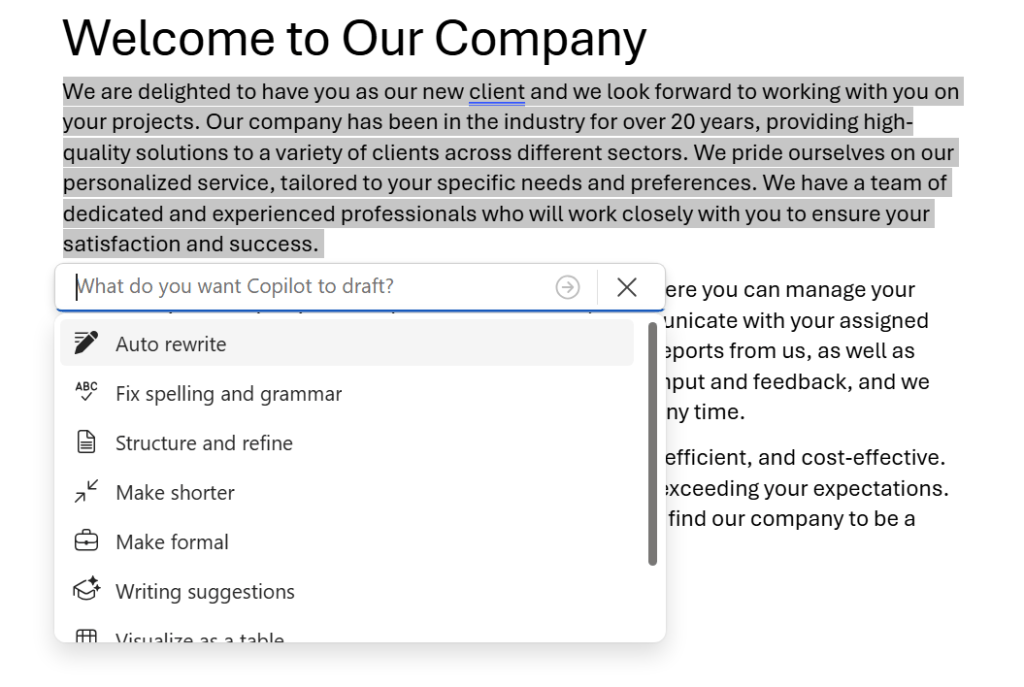
Copilot offers several approaches for rewriting your document.
Howard Wen / Foundry
After you make a selection from the dropdown, the “Rewrite with Copilot” panel appears below your highlighted text. Copilot will generate and present up to three rewritten versions in the panel. Click the right and left pointing arrows at the top of the panel to cycle through these rewrites to review them.

Reviewing Copilot’s suggested rewrites for the highlighted text.
Howard Wen / Foundry
Below the rewritten text, you can click the following buttons:
- Replace will replace the original text that you highlighted with the currently visible rewritten version.
- Insert below will insert the rewritten version below the original text you highlighted (so that you can decide later if you want to keep it).
- The Regenerate button (two circular arrows) will generate another result.
- In the Word web app, there’s a text entry box where you can refine the result by typing more prompts.
Note: Users with Copilot and M365 business subscriptions can also have Copilot rewrite messages in Teams. This feature works similarly to the Rewrite with Copilot panel in Word.
Using the Copilot icon in OneNote
The OneNote Windows app has its own built-in rewriting tool. To use it, click the top bar of a text field on a page, then click the Copilot icon to the left of the text field and on the next menu, select Rewrite this.

Select Rewrite this from the Copilot menu.
Howard Wen / Foundry
This action will trigger Copilot to rewrite everything inside the text field. The rewrite will then be set inside the top of the text field.
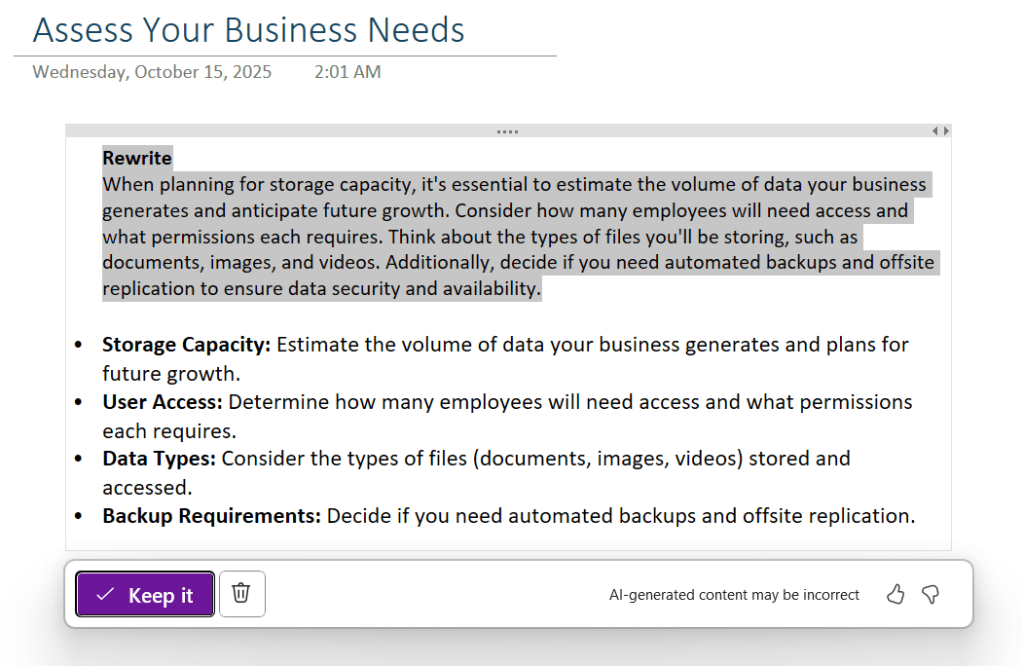
The rewritten text appears in the text field above the original text.
Howard Wen / Foundry
Using the Copilot sidebar in Word, Outlook, or OneNote
You can use the Copilot sidebar for rewriting in Word’s Windows and web apps, and in the Outlook and OneNote web apps — though it’s less convenient in Outlook and OneNote.
On the Home tab in the ribbon toolbar, click the Copilot button to open the Copilot sidebar to the right.
In Word: To have Copilot rewrite the whole document or note, type rewrite in the text entry box. To have it rewrite a specific paragraph, supply the paragraph number or select the paragraph you want rewritten. You can also describe how you want the text to be rewritten, such as rewrite the first paragraph to be shorter or rewrite paragraph 3 to sound more professional.
In Outlook or OneNote: Here you can’t simply select the text you want rewritten; you have to paste the text into Copilot’s text entry box and tell the AI how you want it rewritten.
Copilot’s rewritten text appears in the sidebar. In Word, you can click + in the row of icons that appear below the generated text to add it to your document. It will be added in the spot where the cursor is on your document. In all three apps, you can use the Copy icon to copy the rewritten text to your clipboard, and then paste it where you like.
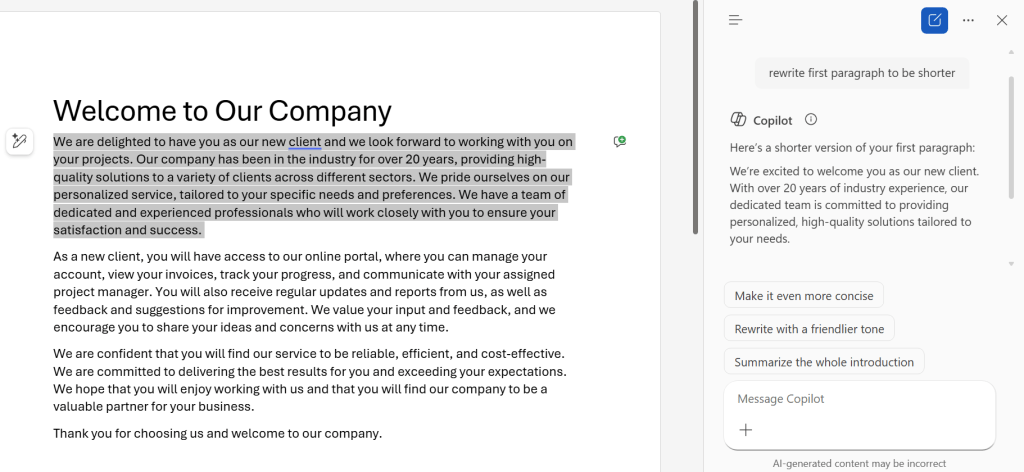
A rewritten paragraph in the Copilot sidebar.
Howard Wen / Foundry
If you want to adjust Copilot’s rewriting result, you can click one of the suggested prompts that appear in the sidebar below the generated text — or you can type more prompts in the text entry box.
Having to copy and paste text to and from the sidebar in Outlook and OneNote is a bit of a hassle. For rewriting tasks in those apps, it’s simpler to use Outlook’s Coaching feature or OneNote’s “Rewrite this” tool via the Copilot icon.
Have Copilot summarize long documents, notes, emails, or threads
You can have Copilot generate a brief summary of a long document in Word or a page in OneNote. Microsoft says Copilot can summarize up to 1.5 million words. In Outlook, Copilot can summarize a long email and, even more useful, the conversation within an entire email thread.
Using the Copilot summary panel in Word
When you open a document that already contains text in the Word web app, Copilot automatically generates a summary of it in a small panel above your document; click View more to expand the panel so that you can view the entire summary.
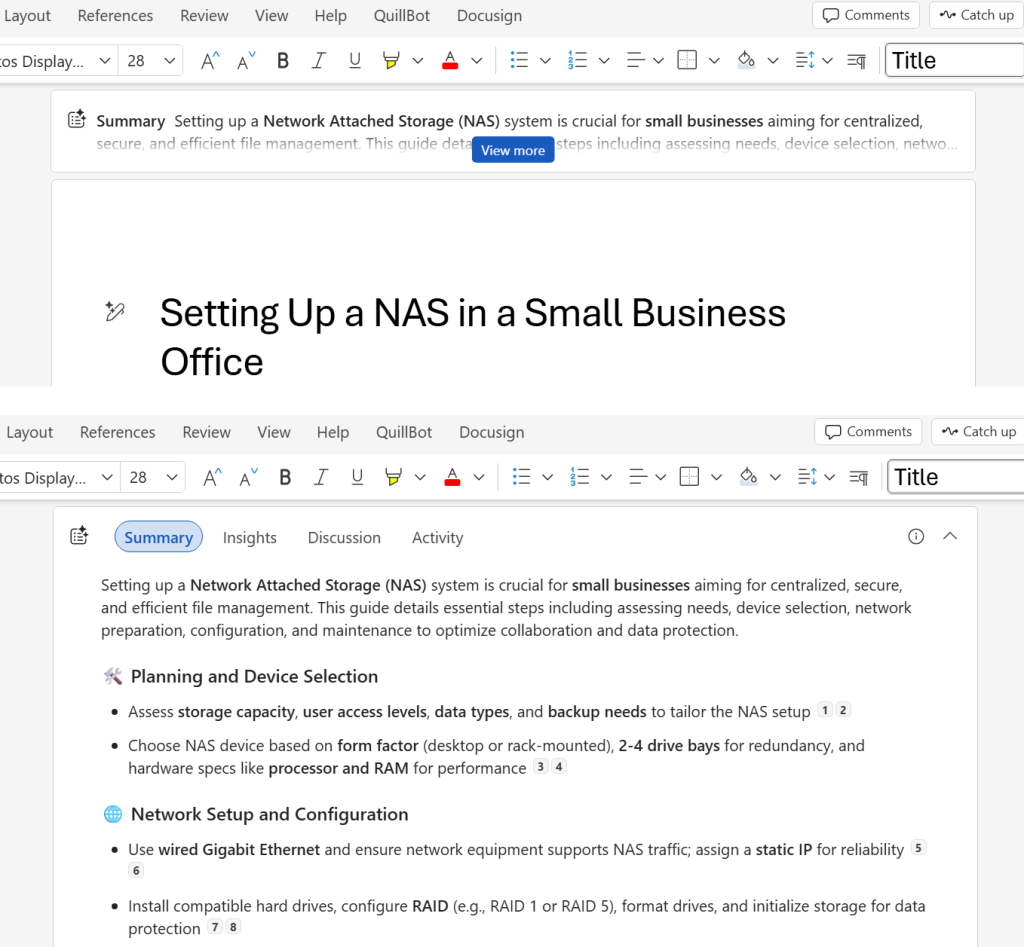
Click View more (top) to expand the summary panel and see the full summary (bottom).
Howard Wen / Foundry
Throughout the summary, you may see citation numbers that refer to passages of text within the original document. Moving the pointer over one of these numbers will pop open a snippet of the cited text in a small panel. Clicking a number will jump your view of the document in the main window to the cited text in it.
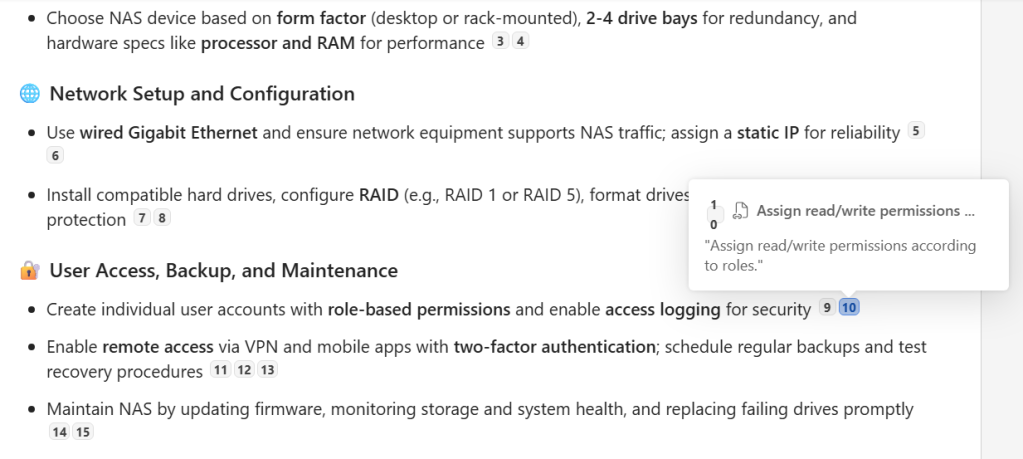
Hover over a citation number to see a snippet of the cited text.
Howard Wen / Foundry
Using the Copilot sidebar in Word
With the document opened in Word, highlight the text that you want summarized. If you want a summary of the entire document or page, skip this step.
Click the Copilot button on the Home tab of the ribbon toolbar to open the Copilot sidebar. Inside the text entry box, type summarize and click the arrow button.
Copilot will generate a summary and display it inside the sidebar.
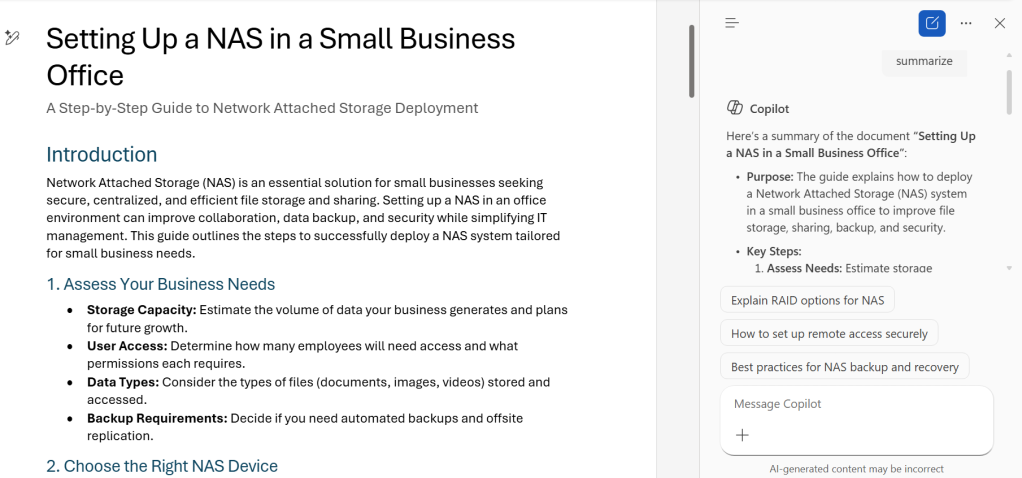
Copilot’s summary of a long document in the sidebar.
Howard Wen / Foundry
Below the summary, there’s the familiar + icon you can click to add the generated text to your document and the Copy button to copy the summary to your PC clipboard. Below that you may see suggested prompts that you can click to revise the summary.
Using the Copilot icon or sidebar in OneNote
Click the top bar of a text field on a page. Click the Copilot icon to the left of the text field and on the next menu, Summarize this. This action will trigger Copilot to summarize everything inside the text field. The summary will then be set inside the top of the text field.
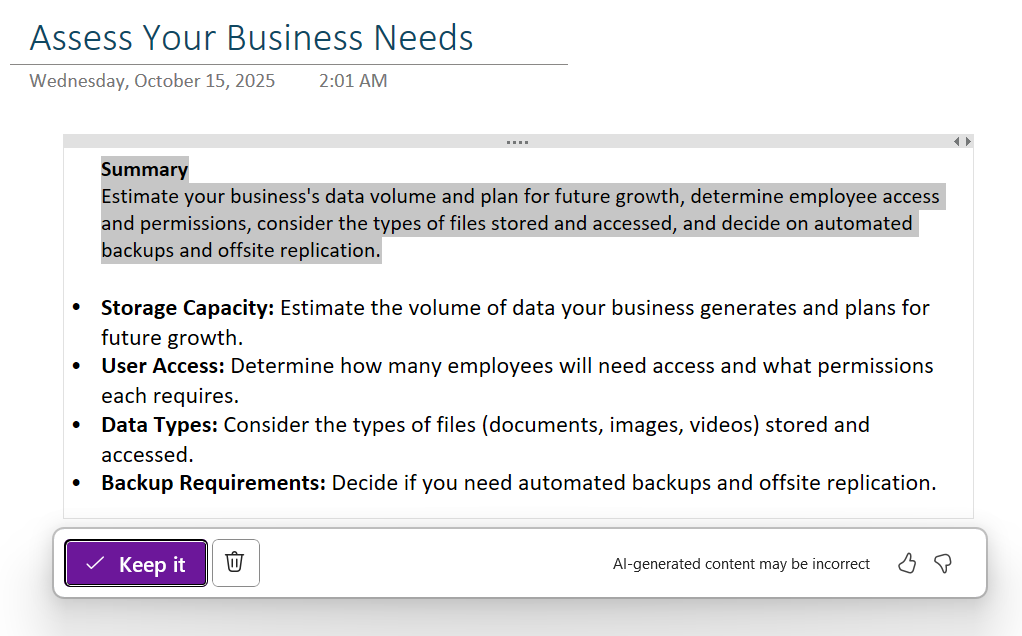
In OneNote, Copilot’s summary appears at the top of the text field.
Howard Wen / Foundry
To summarize an entire notebook, open the Copilot sidebar, type summarize in the text entry box, and click the arrow button. Copilot will generate a summary and display it inside the sidebar, along with the usual Copy button and suggested prompts for refining the output.
Summarizing emails and threads in Outlook
Open the email or conversation that you want to summarize. Click Summary by Copilot or Summarize at the top of the email thread. Copilot will generate a summary of the email or thread.
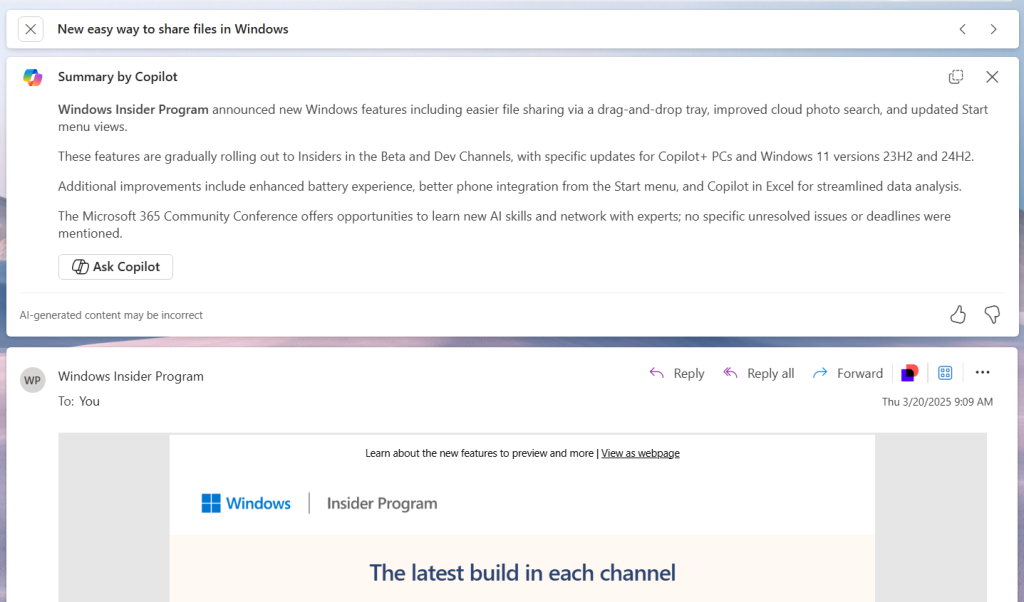
A Copilot-generated summary of an email.
Howard Wen / Foundry
This summary will be posted at the top of the email or thread. Thread summaries may include citations that Copilot used in generating the summary. Clicking a citation (denoted by a number) will scroll down the thread to the cited email for you to view.
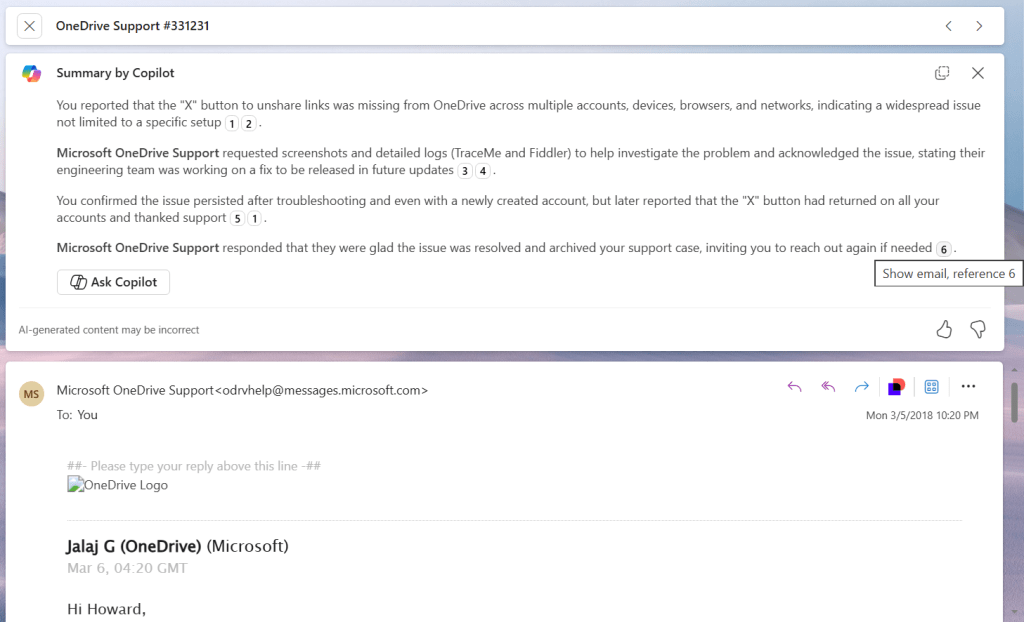
This Copilot-generated summary of an email thread includes citations you can click to go to the source email.
Howard Wen / Foundry
Getting a summary when sharing a Word doc (business plans only)
If you have Copilot with a Microsoft 365 business plan, you can use Copilot to generate a summary of a Word document when you share it with your co-workers. This summary is inserted as a passage of text inside the message that your co-workers receive inviting them to collaborate on the document.
Note: This feature works with the web version of Word, not the desktop apps.
With the document open in Word, click the Share button toward the upper right. On the Share panel that opens, click the Copilot icon inside the lower right of the “Add a message” composition box. The AI will generate and insert the summary. You can edit the summary before you send out the invite.
This article was initially published in August 2024 and updated in December 2025.
Related:
Read the full article here