


Pirate survival game Windrose is crying out for a dedicated server if you plan to set sail for a lengthy voyage—especially if you plan to do so with friends. If you want to build the pirate fortress of your dreams, deck out your ship and make your way through the game’s sprawling skill tree, you’ll want a 24/7 world that your friends can hop in and out of whenever they like. That means installing a dedicated server, and using Windrose’s admin commands to configure it to your liking.
Or, er, it would, if Windrose’s server tools actually supported admin commands as you’d expect. As of the early access launch, it doesn’t, meaning you’re pretty limited in how you can configure a custom server. There are no Windrose admin commands right now.
Article continues below
Windrose dedicated server options
If you don’t want to pay for the official (but rather pricy) Windrose dedicated hosting at Nitrado, you can host your own Windrose server on your own PC or NAS for free. As of launch week, users on Steam have brought up a few issues with Windrose’s dedicated server implementation:
- The server is Windows-only, so running it on a Linux system requires the Wine compatibility layer
- Frequent crashes on startup
- Confusing documentation around client/server connectivity
- High CPU usage even when no players are active
While several users have tried to create Docker containers to make hosting your own server more convenient, the issues above are preventing some players from getting them running properly. These issues will likely be tackled in the coming weeks, but for now I wouldn’t recommend going that route due to the likely troubleshooting involved.
The simplest approach is hosting a dedicated server on the same Windows PC that you use to play games. To do that, use the drop-down in your Steam library to view Tools instead of games, and install Windrose Dedicated Server. Then right-click the entry in your library (or the gear icon) and navigate to Manage > Browse local files.
With the Windrose Dedicated Server folder open, launch it once by double-clicking StartServerForeground.bat. (This method of launching the server will let you view logs that could be useful for later troubleshooting). After first launch, the Windrose server will create a settings file with default values that we can then configure.
Windrose admin commands and dedicated server configuration
As mentioned above, there are no Windrose admin commands that you can run from within the game (or in the dev console) to control your server. That’s a bummer! The expected controls like booting players, restarting, saving, etc. are absent. But there are configuration settings you can edit as you get your server up and running.
To configure a Windrose dedicated server, look in the R5 subfolder for ServerDescription.json and open it in Notepad (or a more code-oriented application like Notepad++ if you have one). Find the “InviteCode” listing and copy the code displayed there in text.
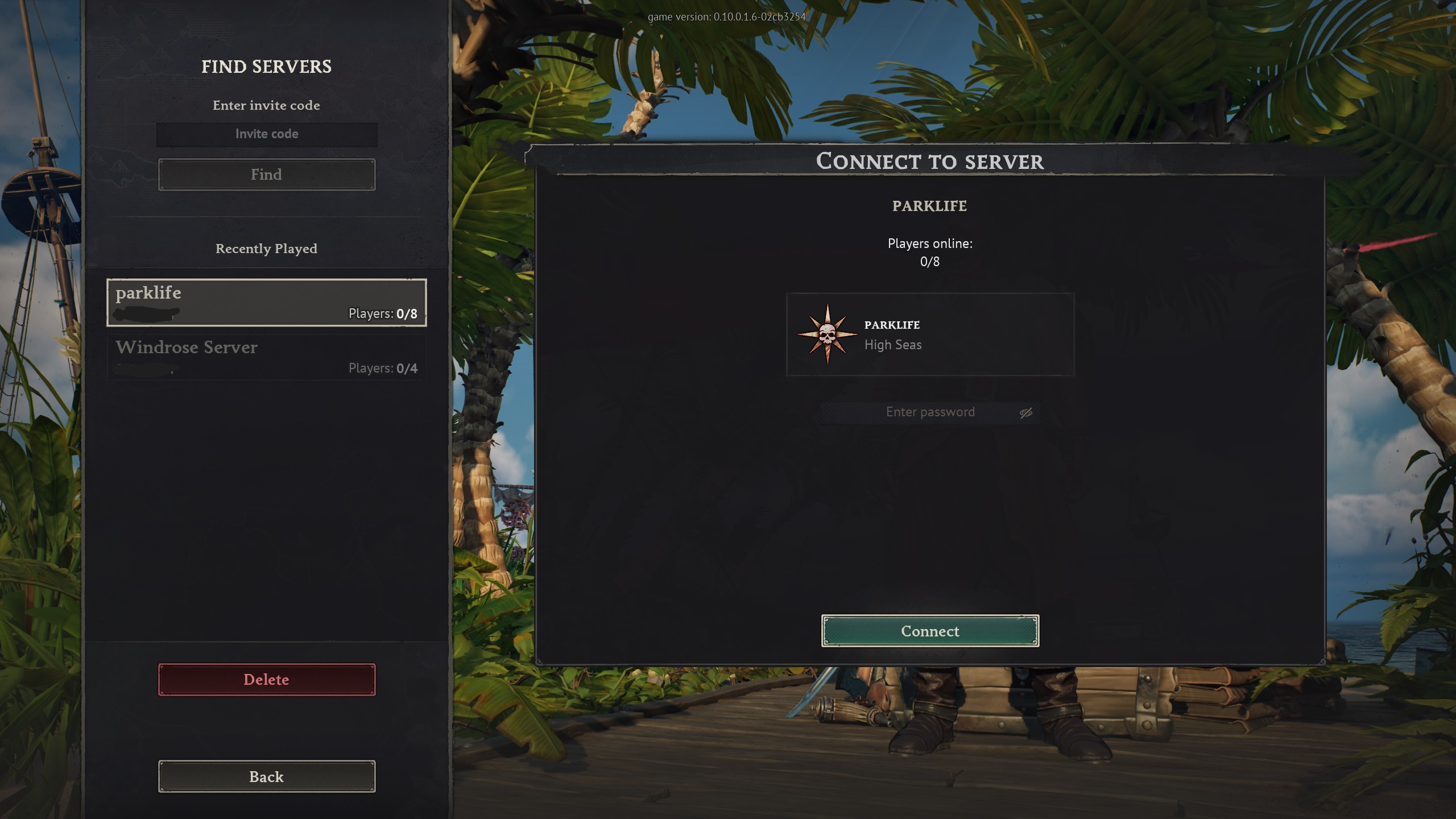
Launch Windrose proper and click Connect to Server from the menu. Paste your invite code and hit Find. You should be able to see your server running and connect to it. After waiting for the lengthy load, your server will now have a generated world for you to modify. It may take a few attempts to connect, so try again if it times out. Check out the official FAQ if you run into more issues.
Now you have two files you can make configuration changes in:
- ServerDescription.json – Located in root folder/R5)
- WorldDescription.json – Located in root folder/R5/Saved/SaveProfiles/Default/RocksDB//Worlds//WorldDescription.json
Here’s what you can change in each one:
ServerDescription
- InviteCode – Customize a minimum 6 digit code using 0-9, a-z and A-Z
- IsPasswordProtected – “true” or “false”
- Password – Set a custom password
- ServerName – Set a custom server name
- MaxPlayerCount – Set how many concurrents can join
WorldDescription
- WorldName – Customize the name of your pirate paradise
- WorldPresetType – Change the world preset difficulty to “Easy” “Medium” or “Hard.” (This value will automatically be changed to “Custom” if you tweak individual values in WorldSettings, the next option)
- WorldSettings – “true” or “false” for co-op quests and the visibility of map markers that make exploration easier, and numerical values for enemy health, difficulty, and stats. Here’s the full breakdown of options:
MobHealthMultiplier: Defines how much Health enemies have. Default: 1.0; Range: [0.2; 5.0]
MobDamageMultiplier: Defines how hard enemies hit. Default: 1.0; Range: [0.2; 5.0]
ShipHealthMultiplier: Defines how much Ship Health enemy ships have. Default: 1.0; Range: [0.4; 5.0]
ShipDamageMultiplier: Defines how much Damage enemy ships deal. Default: 1.0; Range: [0.2; 2.5]
BoardingDifficultyMultiplier: Defines how many enemy sailors must be defeated to win a boarding action. Default: 1.0; Range: [0.2; 5.0]
Coop_StatsCorrectionModifier: Adjusts enemy Health and how fast enemies lose Posture based on the number of players on the server. Default: 1.0; Range: [0.0; 2.0]
Coop_ShipStatsCorrectionModifier: Adjusts enemy Ship Health based on the number of players on the server. Default: 0.0; Range: [0.0; 2.0]
CombatDifficulty: Defines how difficult are boss encounters and how aggressive are enemies in general; Default: Normal; Range: Easy, Normal, Hard.
Those are the options you can change in Windrose for now, but presumably there will be many more choices—and proper admin controls—as it progresses through early access.
Read the full article here