

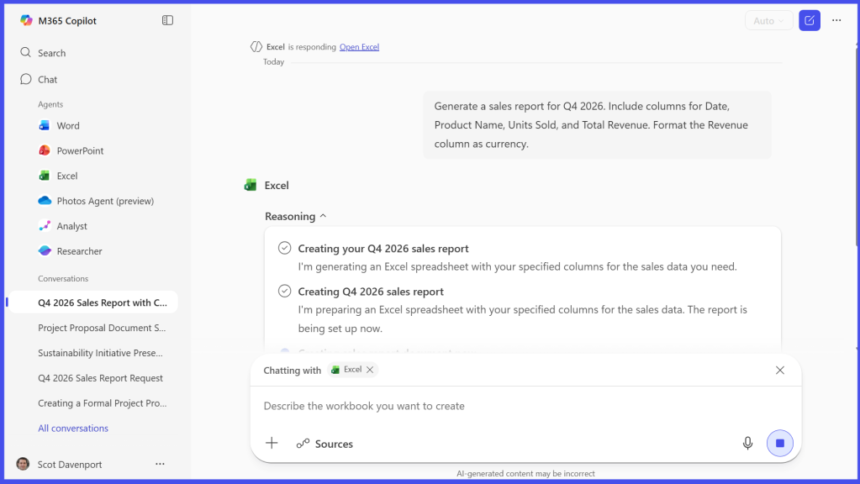
Call up the Analyst agent and upload the files you want it to analyze.
Howard Wen / Foundry
Notes for Excel and PowerPoint files:
- Ensure that the data in an attached Excel file is formatted as a table. In this way, Copilot can better identify the range of values in it for analysis.
- For PowerPoint, the Analyst agent works best if your slide deck is text-heavy.
Here are a few ways you can have Copilot analyze your files:
Identify trends in data sets or presentations
Using the Analyst agent, Copilot can act as a data analyst, spotting patterns and anomalies in your Excel or PowerPoint files. It can also identify missing data that would provide a more complete picture.
Tip: For the most accurate results, describe a specific source (such as the name of a table or slide numbers) and the timeframe to give the agent boundaries for its analysis.
PowerPoint example:
- Look at slides 4 through 8. What are the themes or trends in our sales?
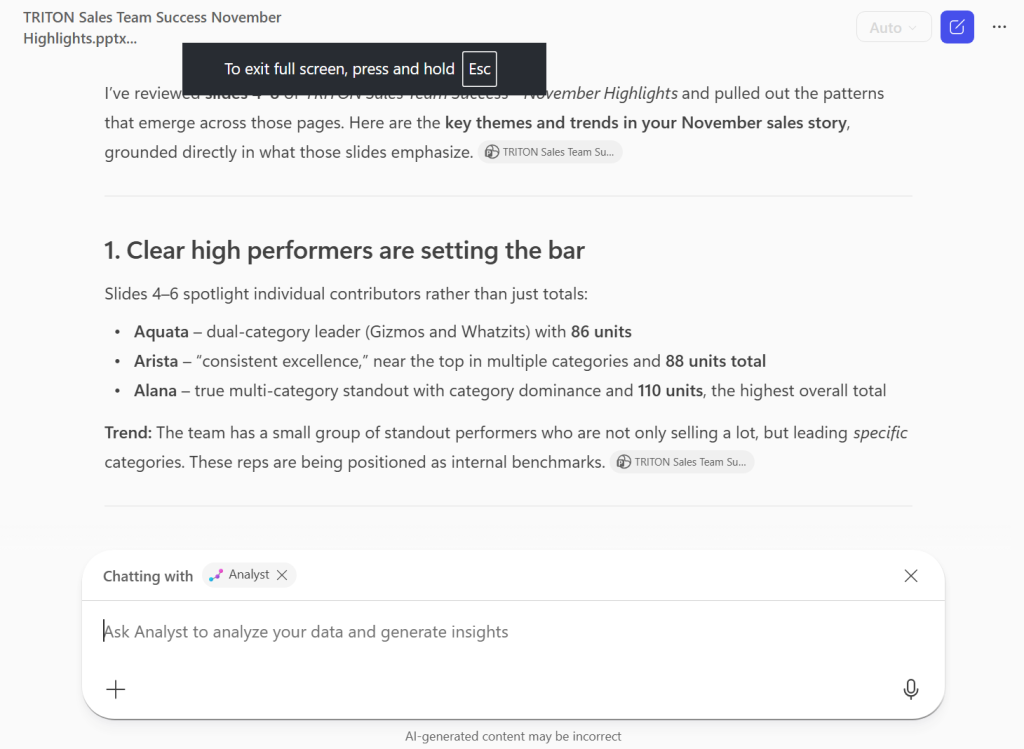
Copilot Chat’s Analyst agent can surface key themes in a PowerPoint presentation.
Howard Wen / Foundry
Excel example:
- Show me the sales trends over the last month. Identify which product category is growing the fastest.
If your source file is missing the data Copilot needs for the trend analysis you’ve asked for, it will tell you so. It may instead provide a summary of the data the file does include and/or what can be inferred from the file’s data.
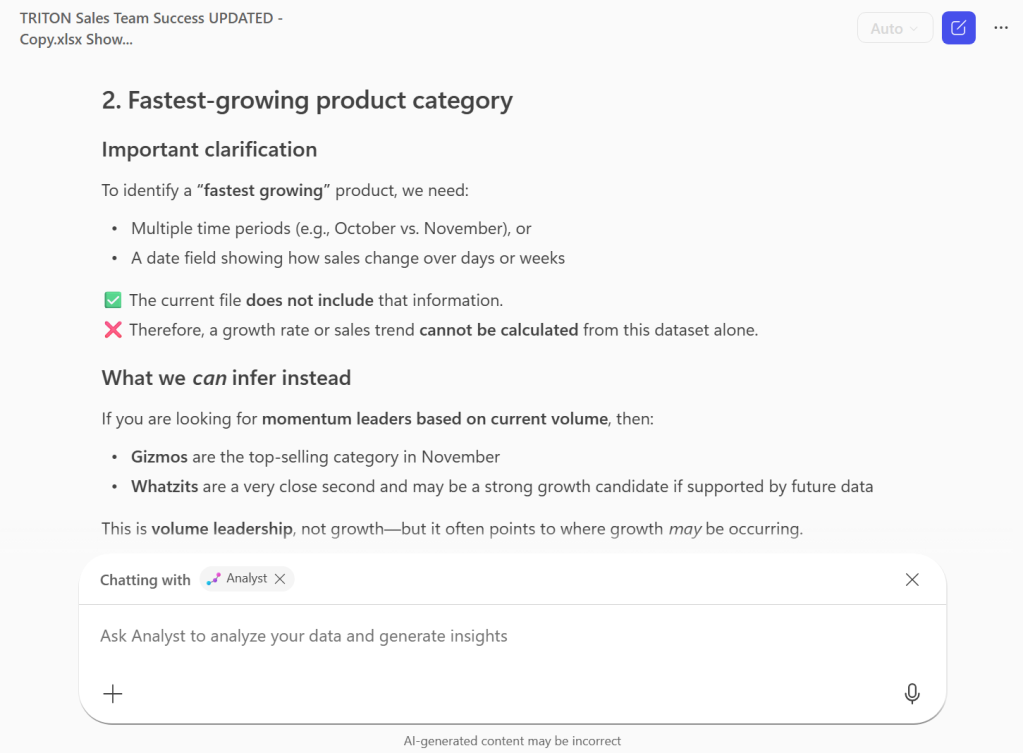
Copilot correctly says it can’t provide the requested analysis from the source data.
Howard Wen / Foundry
Project forecasts
The Analyst agent can use statistical models to project future values based on historical data in an Excel file. (These are simple projections and should not be presented as official forecasts.) Your source spreadsheet must include a time-based column, such as dates, and a numerical column for the values you want Copilot to forecast.
Example:
- Create a forecast for January based on the months of October, November, December in this spreadsheet.
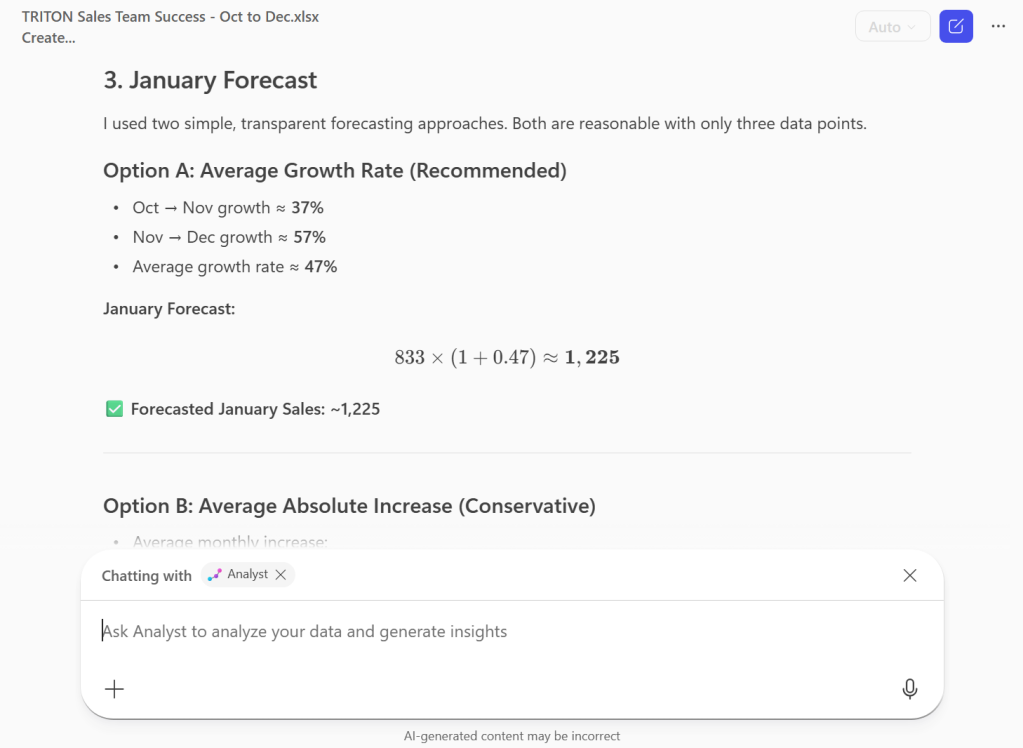
Copilot has projected January sales based on the average growth rate from October to December.
Howard Wen / Foundry
You can also prompt the Analyst agent to create a projection based on an Excel spreadsheet and output it on a PowerPoint slide that you can download. Example:
- Create one slide that shows a sales forecast based on the months of October, November, December in this spreadsheet.
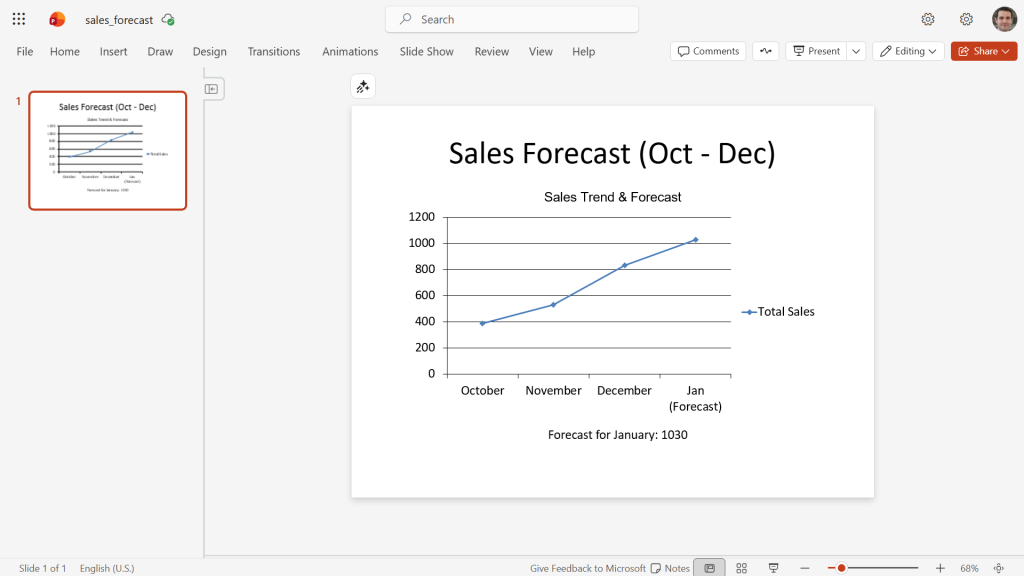
A sales forecast slide generated by Copilot.
Howard Wen / Foundry
The agent explains how it calculated the forecast and offers suggestions for tweaking the result. Type whatever changes you want to make into the chat box, and Copilot will generate a new version of the slide.
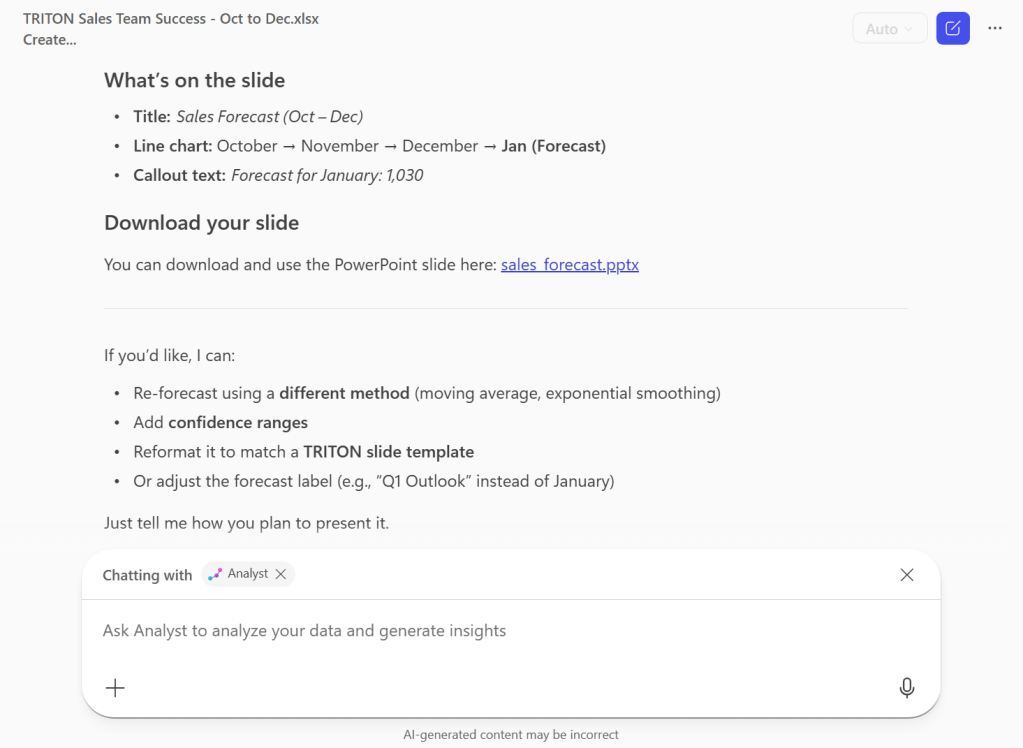
Copilot explains what it did and suggests possible changes.
Howard Wen / Foundry
Compare document versions
Documents often go through multiple revisions, especially in a collaborative work environment. Unlike a basic versioning feature that lists literal differences, Copilot can provide contextual understanding and explain why a change is significant.
After you’ve attached two files to the chat box, enter a prompt, such as:
- Compare these two documents and highlight their key differences.
The Analyst agent summarizes the changes in the document’s overall direction and details the main differences in specific aspects of the document.
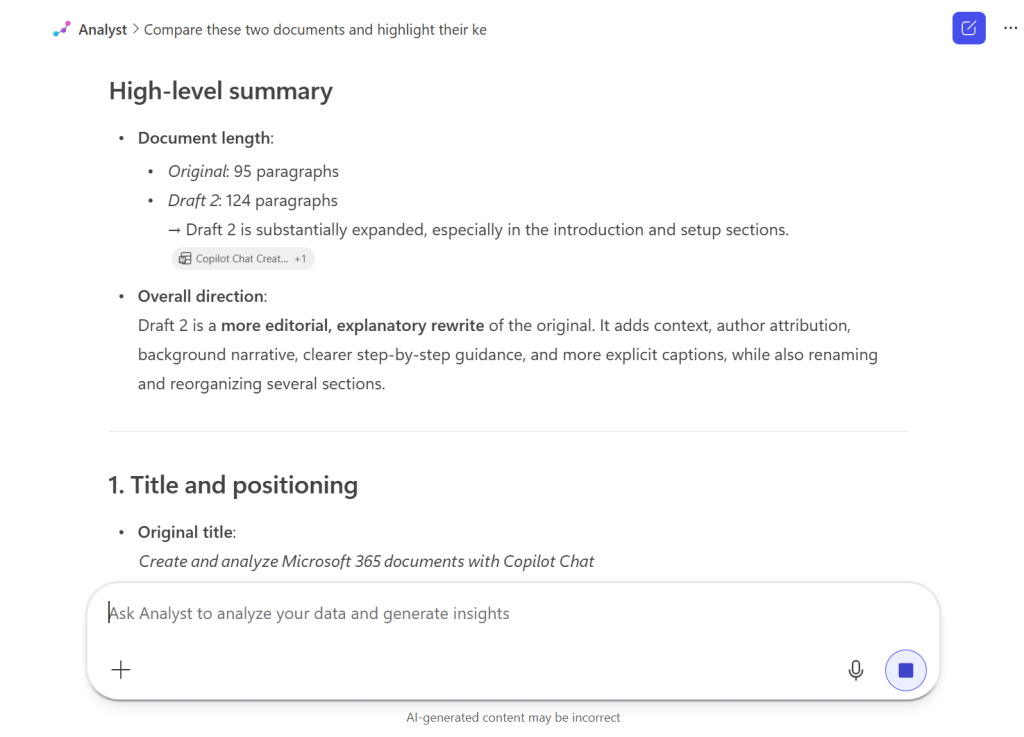
The Analyst agent explains how a document has changed overall, then cites key differences in areas such as title and positioning.
Howard Wen / Foundry
Note: If you don’t have access to the Analyst agent, you can alternatively try using the Word agent or the main Copilot Chat interface to compare two document versions. Like the Analyst agent, Copilot Chat presents its results in the chat window. If you use the Word agent, it creates a detailed comparison document after asking a series of questions about purpose, audience, and style.
Get collaboration insights using Copilot Chat
When working on a project with your co-workers, it can be a challenge to keep up with who did what to a file. You can prompt Copilot to list edits and comments to a file. This allows you to catch up on the context of changes without having to open it.
You don’t need to invoke the Analyst agent to do this. This works better if you use the main Copilot Chat. Click the + icon to attach the file (document, spreadsheet, presentation).
Optionally: At the upper-right corner, click Auto, which will open a dropdown. Here you can select an AI model that gives you results faster, or one that spends more time “thinking” in order to give you better-quality results. A second dropdown at the bottom lets you select a specific AI model by name, such as GPT-5.3 or GPT-5.4. We recommend picking a “think deeper” model for insights retrieval.
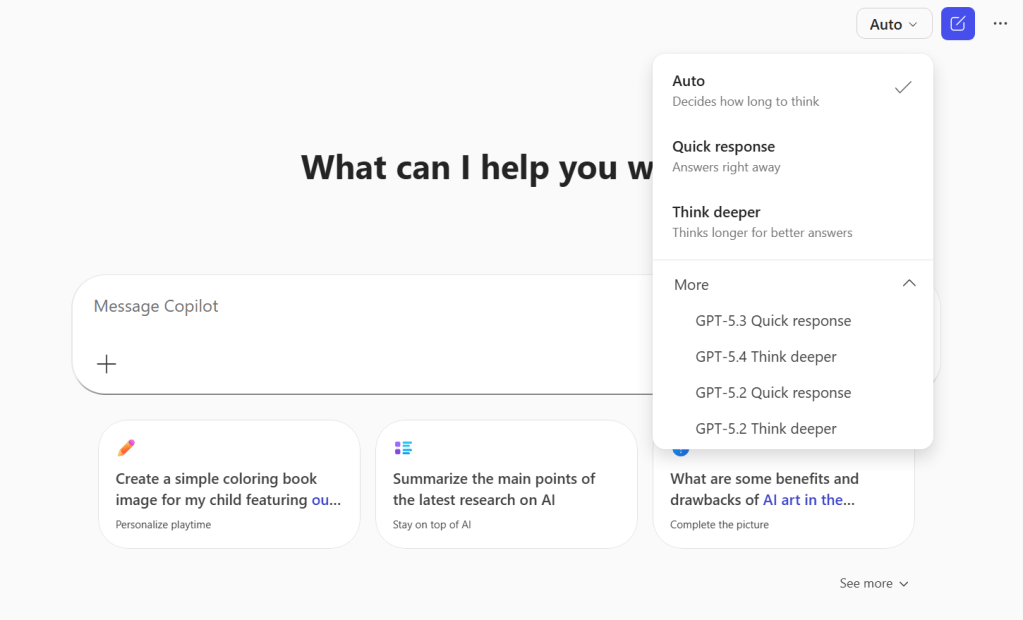
You can optionally pick a model for Copilot to use when it generates results.
Howard Wen / Foundry
Example prompts to extract collaboration insights:
- What has [CO-WORKER NAME] updated or commented on in this document?
- Summarize the comments and feedback left by everyone in this attached document.
Copilot will generate a detailed response based on your prompt.
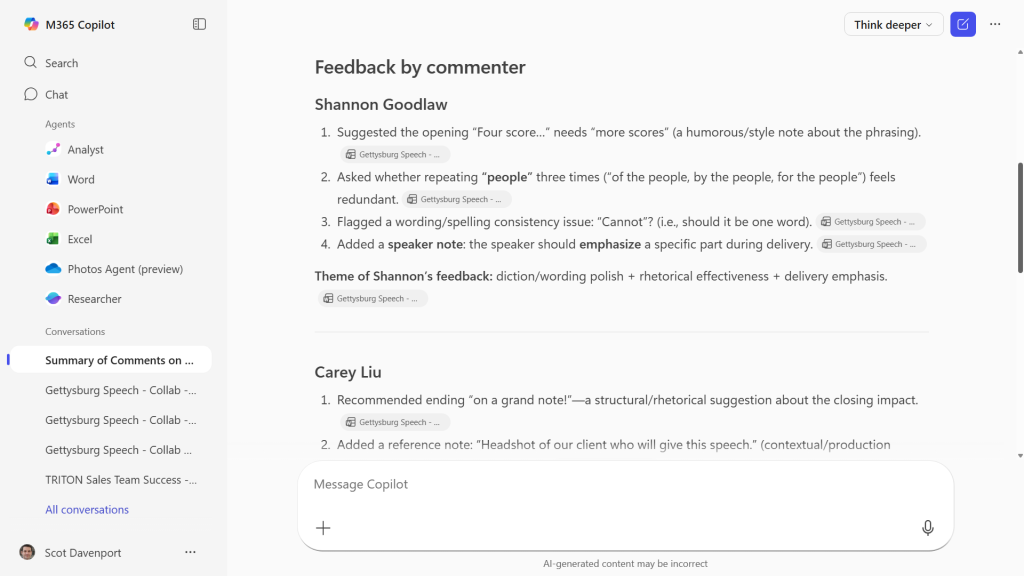
Copilot can summarize who did what to a shared document.
Howard Wen / Foundry
Read the full article here